Tag: basementgrid

  • Submit Quotation: How v2.5 Gets a Quote From Vendor to Work Order Without the Chasing

    Basementgrid v2.5

    Basementgrid v2.5 is out, and the main new feature is Submit Quotation. Vendors can now send their quote straight into the work order, and the approval that follows runs on its own. Please update your app to try it.

    First, a look at how a quotation usually works, because it explains why we built this.

    How it works today

    The vendor sends a quotation by email or WhatsApp. The BM can’t just forward it to the council, because nobody knows what it’s for. So he writes the background first: what broke, why this vendor, why this price. Then it goes to the council members for approval, and he waits for a majority to reply.

    When the work is done, he scans the vendor’s job sheet. He then sends the quotation, the job sheet and a screenshot or email of the council’s approval to the accountant, who creates the payment. After that the whole pile goes to the two approvers, usually the Treasurer and the Secretary, who approve the payment in the bank app.

    Every step is a forward, and every forward can sit in someone’s inbox for a week. When someone asks where it’s stuck, nobody can say.

    We had already turned most of this into a work order link, with timestamps and comments recorded in the app. In v2.5 the quotation itself moves into the work order too.

    What’s new in v2.5: Submit Quotation

    work order approval workflow

    The vendor now submits the quote directly in Basementgrid, with the amount entered in the system. The BM reviews it and taps Accept. If the amount is under the approval threshold, the work order goes out to the vendor straight away.

    If the amount is above the threshold, Basementgrid sends it to the council members for authorisation. The work order is only issued once the minimum number of approvals is met. The BM doesn’t forward anything or write a summary. The moment the council approves, the vendor gets the work order and can dispatch a technician.

    When council members don’t respond

    Most delays aren’t rejections. Someone just hasn’t got round to it. So Basementgrid follows up for you:

    • After 24 hours, it reminds the council members who haven’t approved.
    • After 48 hours, it reminds them again.
    • After 72 hours, it escalates to the BM.

    When the council says no

    The BM is told immediately. From there he has three options: ask the same vendor for a new quote, switch to another vendor, or enter the price himself and issue the work order. Nothing waits on a reply, and the activity log shows exactly where the job is stalled and with whom.

    After the approval: the rest of the job stays in the same work order

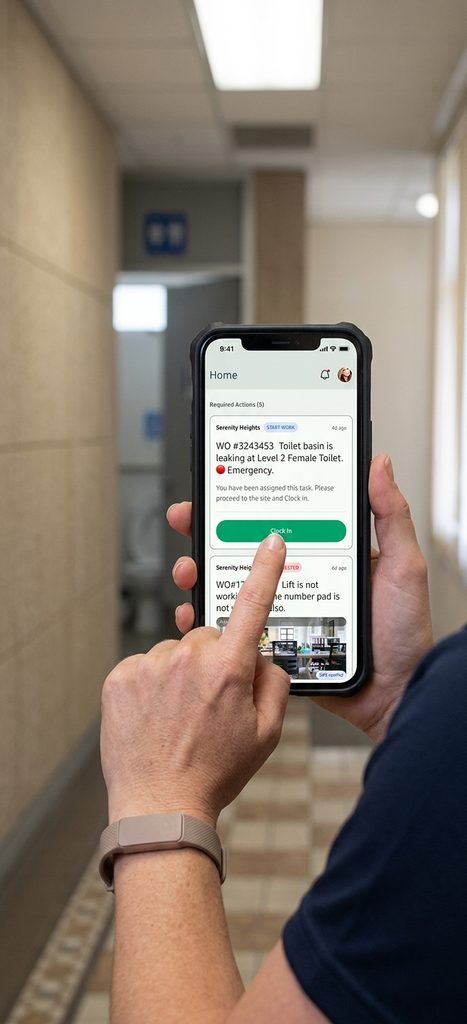
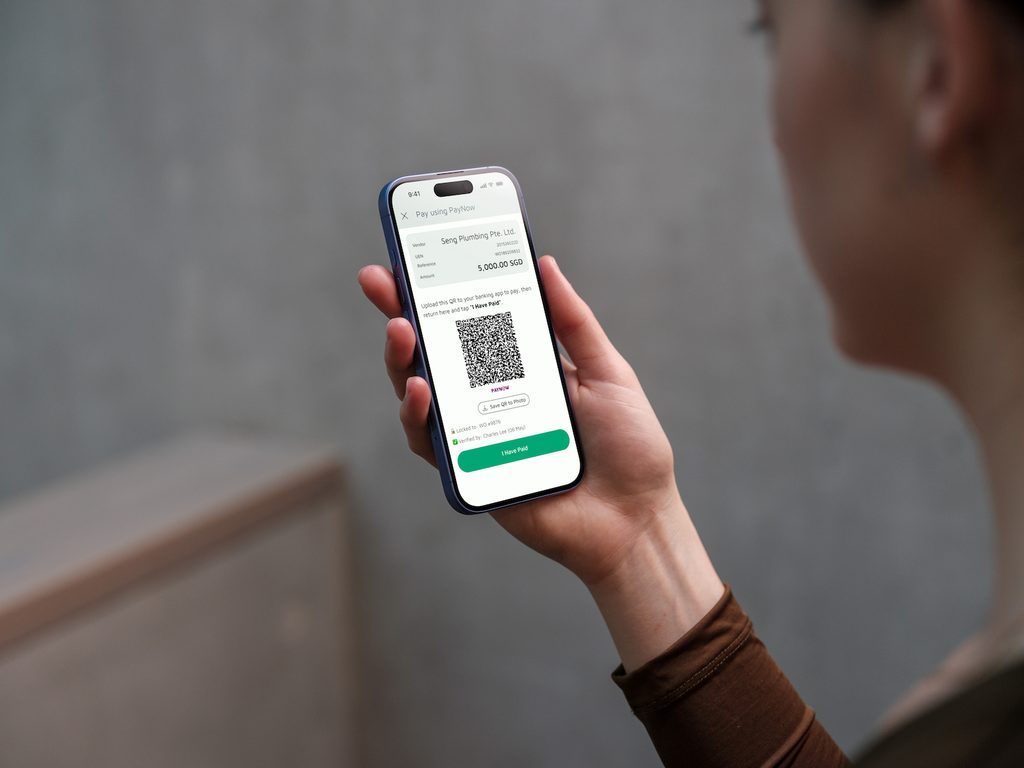
    Once the work order is issued, the vendor’s technician clocks in at the site, does the job and submits proof of work, including photos taken on the spot. The BM reviews it, and the vendor submits the invoice against the same work order. The approvers then pay using the PayNow QR code, which carries the invoice amount and the vendor’s UEN, and the payment is marked as paid. Nobody scans a job sheet or forwards a pile of documents to the accountant, because the quotation, approvals, proof of work and invoice are already in one place with their timestamps.

    Old way vs Basementgrid

    • The quote: It used to sit in an email or WhatsApp chat. Now the vendor enters the amount in the work order.
    • The background: The BM used to write the story behind the quote himself. Now the work order carries it, so there’s nothing to write up.
    • Approval: The BM used to forward the quote and chase council members one by one. Now Basementgrid sends it, reminds them at 24 and 48 hours, and escalates to the BM at 72 hours.
    • Records: There used to be a pile of scans, screenshots and forwarded emails. Now the quotation, approvals, proof of work and invoice sit in one work order with timestamps.
    • When it stalls: Nobody could say where it was stuck. Now the activity log shows exactly where.

    What’s next: creating a work order from a photo

    We’re not stopping at quotations. The next version uses AI to make creating a work order much faster.

    The BM takes a photo of the fault. The AI looks at it and suggests the title, the location and the asset for the work order. The BM checks the suggestions, fixes anything that’s off, and confirms. The work order is created and assigned to the vendor linked to that asset.

    Today, creating a work order means typing a title, picking a location, finding the asset and choosing a vendor. For a BM walking the estate with a dozen things to log, that adds up. With the photo, most of the form is filled in before he starts typing. The BM still has the final say, because every suggestion can be edited before the work order is issued.

    Update to v2.5

    Submit Quotation only works if the people on both sides of the quote are on the latest version. Building managers, council members and approvers, please update your app. Vendors, please update too, so you can submit your next quote directly in the work order.

    You can update from the App Store or Google Play, or get the app here: https://bgr.one/bxK80umibBb

    Fix the process, not the people.

  • The Light Stayed Broken for 3 Weeks. Then a Council Member Mentioned It.

    Daniel is a made-up owner, but if you’ve lived in a condo for a few years, you probably know him.

    Daniel’s corridor light had been flickering for three weeks. He’d reported it to the MA twice and got “noted” both times. Then his neighbour, who sits on the MCST council, mentioned it in passing, and the electrician showed up two days later.

    Daniel noticed that. Council members get answered faster, because the MA reports to the council. Work requests get looked at, the guards pay attention, and a dispute with a neighbour gets taken seriously.

    So when the AGM came around and someone asked for volunteers, he thought about putting his name down. Then he thought about everything he’d heard. The meetings are at night and run for hours. Every decision upsets someone. A neighbour who didn’t get his way may write nasty messages in the estate chat, and a few estates have even ended up in court. He kept his hand down. Most owners do the same.

    Here’s how it could have gone if Daniel had joined and the work lived in an app.

    The council meetings. Instead of booking the function room every month, the council meets on Zoom for the things that need discussion. Quotes and payments that used to wait for a meeting get approved in Basementgrid whenever Daniel has a minute, like on the MRT. The call is recorded, an AI tool drafts the minutes from the transcript, and the secretary signs off. The meetings get shorter and happen less often.

    MCST council meetings

    The money. Daniel’s biggest worry was signing off on something he didn’t fully understand. So the council sets the approval threshold to zero. The MA can’t start any job until the council pre-approves it on Basementgrid. Payment goes through a QR code generated by Basementgrid, tied to the approved amount and the vendor’s UEN, so the amount and the payee can’t change after approval.

    The proof. Before a payment, he doesn’t have to take anyone’s word that the job was done. The vendor clocks in with GPS verification and submits photos taken at the location, with no uploads from the photo library. The BM reviews the work and accepts it before the payment goes out.

    The neighbours. Remember the flickering light? Residents can now report faults themselves in Basementgrid, a bit like the OneService app for HDB estates. Every report is time-stamped, so nothing depends on someone remembering to pass it on. If a job stalls, Daniel can see where it’s stuck and who’s holding it up, and he can ask about it without guessing.

    The quotes. Two quotes for the same lift repair arrive, and they don’t line up. One lists parts and labour separately, and the other has a single lump sum. The AI quote check (coming soon) summarises each quote and flags the items worth questioning. Daniel still makes the call, but he’s no longer comparing apples to oranges by himself.

    The backlash. Eventually a neighbour complains, as one always does. This time Daniel doesn’t have to rely on his memory of a meeting eight months ago. The record shows who approved the job, when, which quote it was based on, and what proof of work came back. He can reply with facts. Some people will still be unhappy, but he isn’t defending himself from scratch.

    Being on the council still takes time, and you’ll still make calls that not everyone likes. But much of the tracking, chasing, and record keeping that made the role feel thankless can now sit in an app. These days you can book a ride or a stay from your sofa because startups took over the tedious parts. Hopefully Basementgrid can join that list, so you can manage your estate from your phone.


    Try it on one work order

    Daniel is made up, but the setup is real. A council member or building manager can create a workspace in about 3 minutes by setting the approval threshold and inviting the other council members. After that, run one work order from start to finish with a vendor you already use, and see how it feels before changing anything else.

    Fix the process, not the people.

  • Set Up in 3 Minutes, Paid in One Workflow: Running Your First Work Order on Basementgrid

    Set Up in 3 Minutes, Paid in One Workflow: Running Your First Work Order on Basementgrid

    Most software for building maintenance asks you to change how you work before it does anything for you. You import data, configure modules, train the team, and three months later you’re still not sure it’s running.

    Basementgrid works the other way. You can start with the vendor you already use, on the next job that comes up. Here’s what that looks like, from setting up your workspace to getting the vendor paid.

    Step 1: Set up your workspace (about 3 minutes)

    Basementgrid New Workspace Onboarding

    A building manager or a council member can create the workspace. You enter the estate details and set the approval threshold, which is the amount above which a work order needs council sign-off. Then you invite the council members.

    That’s the whole setup. You don’t need to load your assets or build your vendor list first. You can add those as you go.

    Step 2: Create your first work order

    Create a work order for whatever needs doing, invite your existing vendor, and assign the job to them. Your vendor doesn’t need to be on Basementgrid already, and they don’t pay to use it.

    If the amount is above your threshold, the work order waits for council approval. Council members get the request, see the amount and the vendor, and approve it. Nobody has to chase anyone on WhatsApp to find out whether the job was authorised.

    Step 3: The vendor dispatches a technician

    Once the work order is issued, the vendor manager invites their technician and dispatches them to the job. The vendor runs their own side, so the building manager doesn’t have to coordinate who is turning up.

    Step 4: The technician does the job, and proves it

    GPS-verification check in

    When the technician arrives on site, they clock in with GPS verification. They do the work, take photos that are also GPS verified, write a work summary, and submit the form.

    The photos have to be taken on the spot, so you’re not relying on a picture sent later that could be from anywhere. The building manager gets a record of who was there, when, and what they did, without having to be on site.

    Step 5: Accept the job

    After the technician submits, the building manager reviews the work and accepts it. The invoice comes only after that, so you’re never paying for something you haven’t checked.

    Step 6: Invoice and payment

    QR code payment is tagged to approved work order amount and vendor UEN

    Once the job is accepted, the vendor manager submits the invoice. Basementgrid generates a PayNow QR code for it.

    Whoever makes payments for the MCST account can use that QR code to create the payment record in the bank, and then approve it. The second approver approves it after that. Most MCSTs need two approvers, and the process fits that. The QR code just means nobody is retyping the vendor’s details or the amount.

    The work order stays on file

    When the work order is completed, it’s filed and tagged to the asset it was for, whether that’s a lift, a pump or a fire panel. The building manager and council members can go back to it later.

    That matters when the council starts asking whether to keep repairing something or replace it. Instead of relying on someone’s memory or a box of old invoices, you can pull up every job done on that asset, what each one cost and who did it. It also stays with the estate when the managing agent or building manager changes.

    Why this counts as plug and play

    You didn’t migrate anything. You didn’t wait for an implementation. You set up a workspace, created a work order, invited the vendor you already work with, and ran one real job through the whole process, from approval to payment to filing.

    Want more control?

    If you want something more customised, such as a form the vendor has to complete before a job can be closed, you can set that up. The guides are at help.basementgrid.com.

    If you’d like someone to walk you through it first, you can book a 15-minute demo.